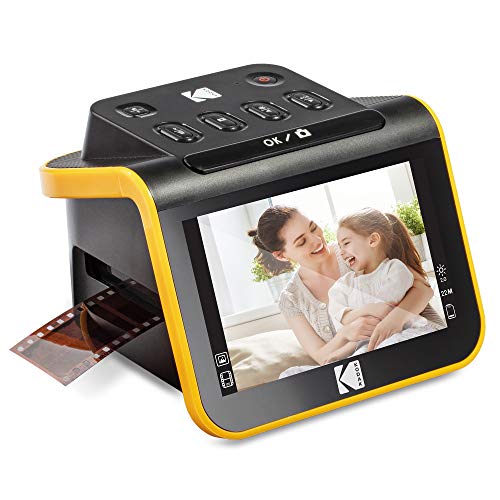
Buying Guide for the Best Kodak Slide Scanners
When choosing a Kodak slide scanner, it's important to consider several key specifications to ensure you get the best fit for your needs. Slide scanners are used to digitize old slides and negatives, preserving your memories in a digital format. Understanding the different features and how they align with your requirements will help you make an informed decision.ResolutionResolution refers to the amount of detail the scanner can capture, measured in dots per inch (DPI). Higher resolution means more detail and larger file sizes. For general use, a resolution of 2400 DPI is usually sufficient. If you need to capture very fine details or plan to print large photos, look for a scanner with 4000 DPI or higher. Consider your end use: for web sharing and small prints, lower resolution is fine; for archiving and large prints, higher resolution is better.
Color DepthColor depth indicates the number of colors the scanner can capture, measured in bits. Higher color depth results in more accurate and vibrant colors. Most slide scanners offer 24-bit color depth, which is adequate for most users. However, if you are a professional photographer or need the highest color accuracy, look for scanners with 48-bit color depth. Think about how important color accuracy is for your projects when choosing the color depth.
Scanning SpeedScanning speed is how quickly the scanner can digitize a slide, usually measured in seconds per scan. Faster scanning speeds can save you time, especially if you have a large number of slides to digitize. Entry-level scanners may take 20-30 seconds per scan, while higher-end models can scan in 5-10 seconds. If you have many slides to scan, a faster scanner will be more efficient. For occasional use, speed may be less critical.
ConnectivityConnectivity options determine how the scanner connects to your computer or other devices. Common options include USB, Wi-Fi, and memory card slots. USB is the most reliable and widely used connection. Wi-Fi allows for wireless scanning, which can be convenient if you want to avoid cables. Memory card slots let you scan directly to a card without needing a computer. Consider your workflow and how you prefer to transfer your scanned images when choosing connectivity options.
SoftwareThe software that comes with the scanner can greatly affect your experience. Good software will offer features like dust and scratch removal, color correction, and batch scanning. Some scanners come with basic software, while others include advanced editing tools. If you need more control over the final image, look for scanners with robust software packages. Think about how much post-processing you want to do and choose a scanner with software that meets those needs.
CompatibilityCompatibility refers to whether the scanner works with your operating system and other devices. Most scanners are compatible with both Windows and Mac, but it's always good to check. Some scanners also offer mobile app support for scanning directly to your smartphone or tablet. Ensure the scanner you choose is compatible with your current setup to avoid any connectivity issues.